





Welcome to Six Degrees Executive
We’re excited to have you on board as part of our contracting community. This page is designed to guide you through every step of your onboarding journey, from completing essential forms and setting up payroll to submitting timesheets and managing expenses.
You will also find key contacts and helpful information to ensure your start with Six Degrees is smooth and well supported.
The values
that drive us
Our values guide everything we do, from how we work together to how we support our clients and candidates. They reflect who we are, what we stand for and our commitment to creating meaningful impact every day.

People
first

Better
together

Do what’s
right

Brave and
Curious

Pursue
best

Make it
happen

Who do I contact for help?
Your contracting support contact is Emily O'Toole, who provides assistance with onboarding, payroll, and general contracting queries. You can reach out anytime for additional support via email: contractor@sde.com.au
What onboarding modules do I need to take?
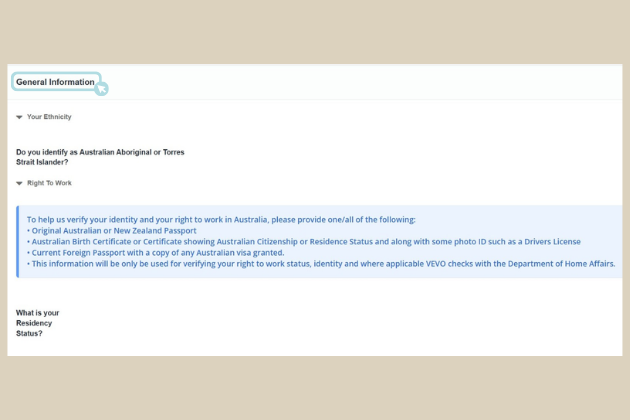
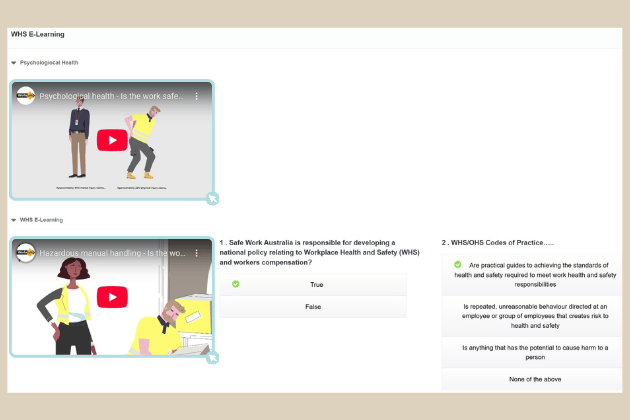
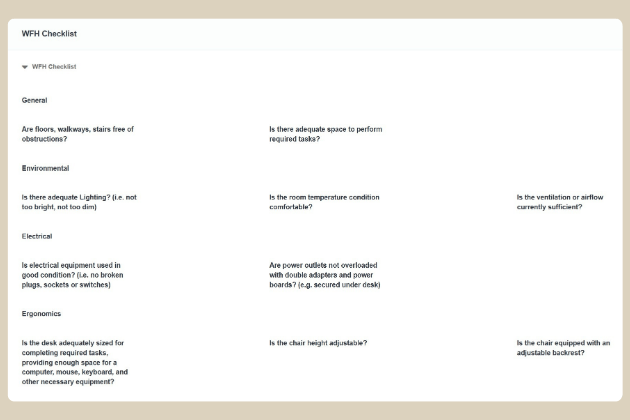
You’ll need to complete the following modules via Onboarded:
- Post-Placement Module (already sent)
- WHS Induction (usually sent during your 2nd week of commencement)
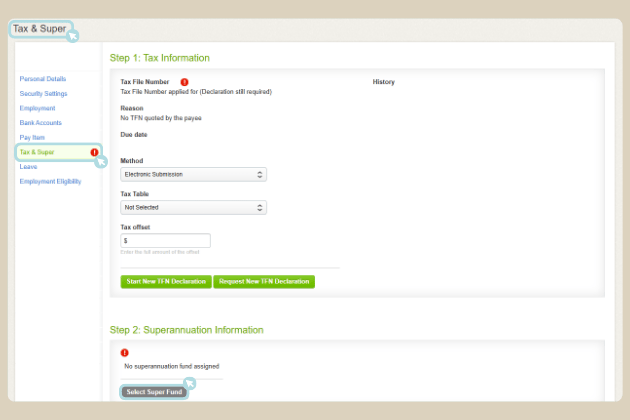
Where do I enter my tax bank super details?
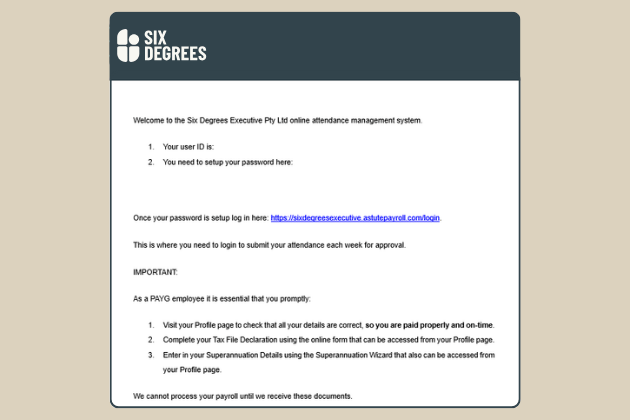
Six Degrees Executive used the platform Astute for all things payroll and timesheet related.
You will be sent an automated email from Astute within 2 days prompting user set-up.
You will be able to finalise your payroll information.
What is the nominated superannuation fund?
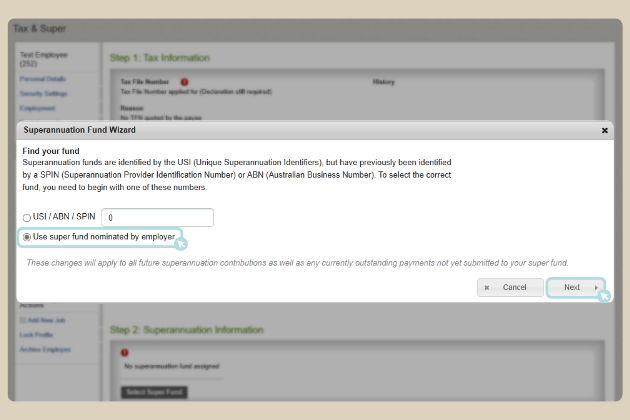
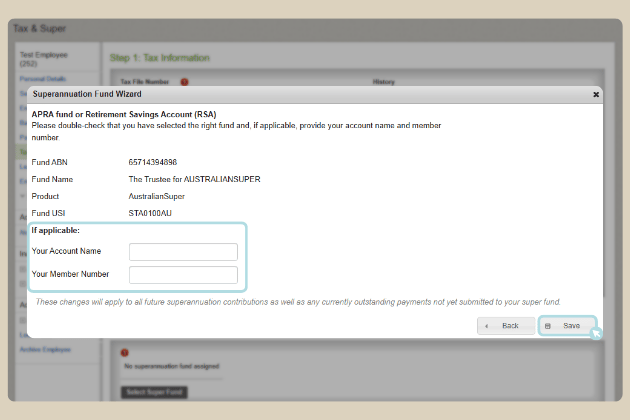
Our nominated super fund is AustralianSuper.
If you wish to default to Six Degrees Executive’s super fund, please select AustralianSuper when completing your onboarding.
Important Note: After your super fund is created, AustralianSuper will send you your membership number. As we don’t have access to your account, please contact AustralianSuper directly for any queries.
What platforms do I use for timesheets?
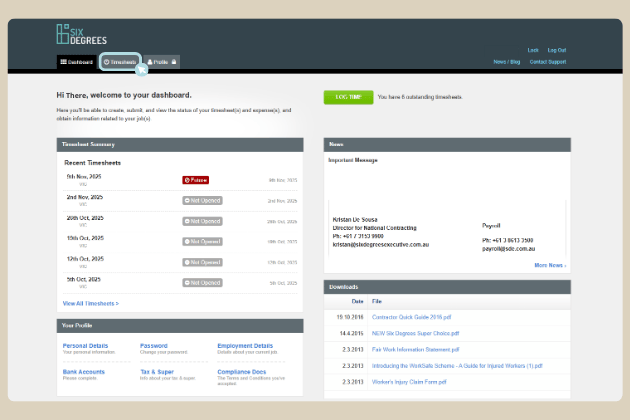
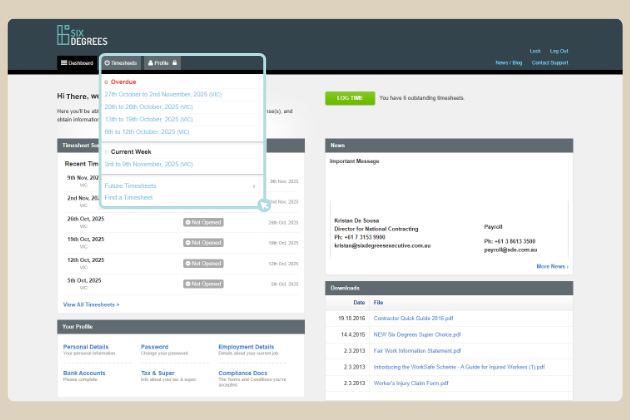
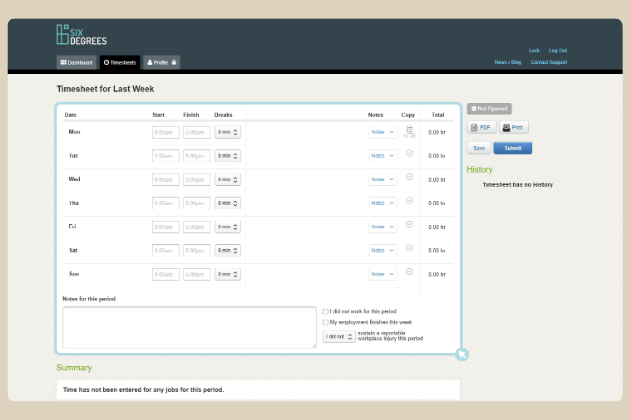
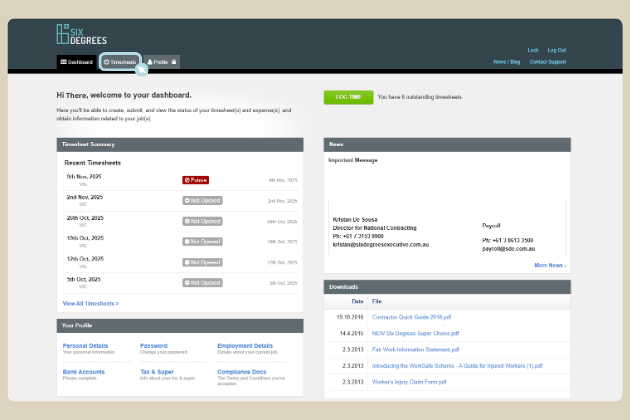
Timesheets are submitted through the Astute portal.
- Please use a web browser rather than your phone.
- Ensure you log your break times.
- Your reporting manager will approve your timesheets each week.
How do I record overtime?
Overtime must be pre-approved by your manager and written confirmation is to be sent to your consultant for record purposes.
How do I submit an expense claim?
Expenses are submitted in Astute.
Reach out to Emily via contractor@sde.com.au and request Expense set up.
Please review this document for step-by-step guidance on submitting your expenses.
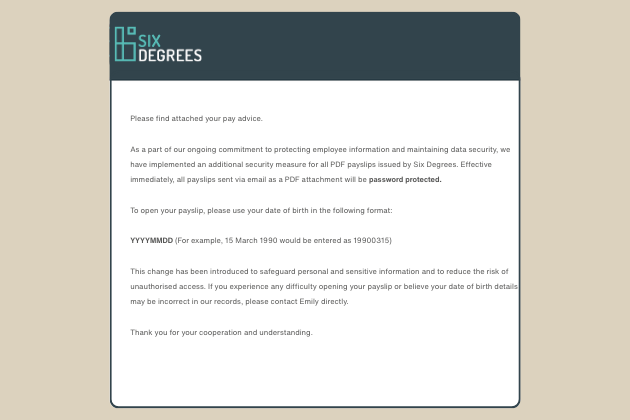
How do I access my payslip?
You will receive your payslip every fortnight via email.
To open your payslip, please use your date of birth in the following format: YYYYMMDD
(For example, 15 March 1990 would be entered as 19900315)
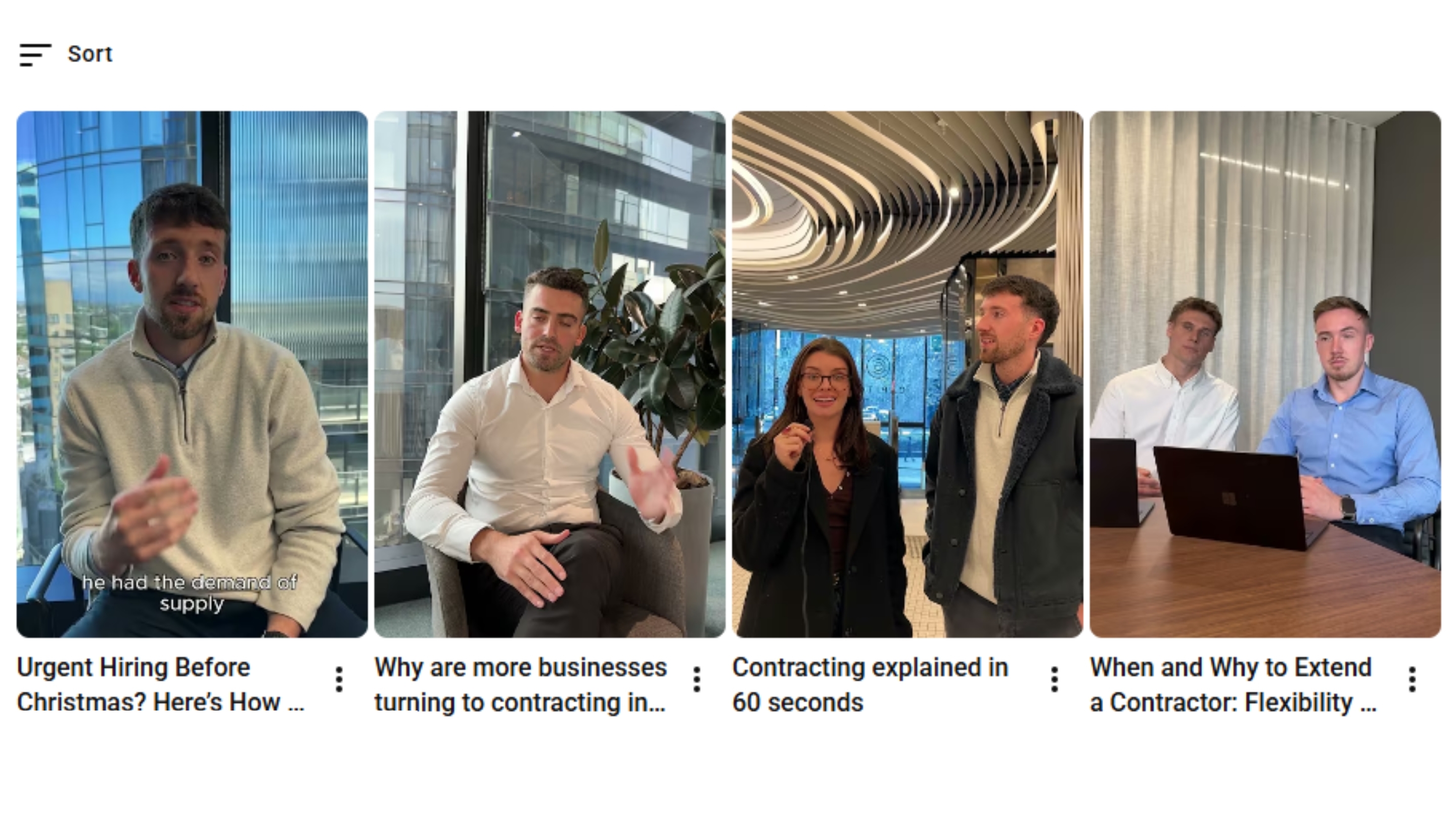
Contracting insights
Stay informed with the latest contracting market insights and trends. Explore data and expert perspectives on workforce demand and the evolving world of contract recruitment.


.jpg)